Section 15.6 The Real-Estate Application
The Slide Show Application developed in the last section illustrates the use of multimedia resources from the web. However, much of the files we may want to retrieve are text based, and we want to be able to use these resources side-by-side with the available multimedia. The next application describes how to do just this.
Subsection 15.6.1 Problem Specification
Suppose a realtor asks you to write a Java application that will allow customers to view pictures and descriptions of homes from an online database. The application should allow the customer to select a home and should then display both an image of the home and a text description of its features, such as square footage, asking price, and so on.
Suppose that the database of image and text files is kept at a fixed location on the Web, but the names of the files themselves may change. This will enable the company to change the database as it sells the homes. The company will provide a text file that contains the names of the files for the current selection of homes to input into the program. To simplify matters, both image and text files have the same name but different extensions—for example,
ranch.txt and ranch.gif. The data file will store just the names of the files, one per line, giving it the following format:
cape
ranch
colonial
Subsection 15.6.2 Downloading a Text File from the Web
This application requires us to solve two new problems:
-
How do we download a text file of names that we want to use as menu items?
-
How do we download a text file and display it in a
JTextArea? -
How do we download and display an image file?
The
SlideShowFrame solves the problem of downloading and displaying an image file. So, the most challenging part of this program is the task of downloading a Web text file and using its data in the program.
For this program we must make use of two types of text data downloaded from the Web. The first will be the names of the image and document files. We’ll want to read these names and use them as menu items that the user can select. Second, once the user has selected a house to view, we must download and display an image and a text description of the house. Downloading the text is basically the same as downloading the file of names. The only difference is that we need to display this text in a
JTextArea. Downloading the image file can be handled in more or less the same way that it was handled in the SlideShowFrame— by using a special Java method to download and display the image file.
Clearly, the problems of downloading a file from the Web and reading a file from the disk are quite similar. Recall that we used streams to handle the I/O operation when reading disk files. The various
InputStream and OutputStream classes contained the read() and write() methods needed for I/O. The situation is the same for downloading Web files.
Recall that the
URL class contains the openStream() method, which opens an InputStream to the resource associated with the URL. Once the stream has been opened, you can read data from the stream just as if it were coming from a file. The program doesn’t care whether the data are coming from a file on the Internet or a file on the disk. It just reads data from the stream. So, to download a data file from the Internet, regardless of whether it’s a text file, image file, audio file, or whatever, you would use the following general algorithm:
InputStream data;
try {
    URL url = new URL(fileURL);          // Create a URL
    data = url.openStream();   // Open a stream to URL
                 // READ THE FILE INTO MEMORY
    data.close();             // Close the stream
  } catch (MalformedURLException e) { // Thrown by URL()
    System.out.println(e.getMessage());
  }   catch( IOException e ) {
    System.out.println(e.getMessage()); // Thrown by openStream()
  }
The algorithm consists of four basic steps:
-
Create a
URLinstance. -
Open an
InputStreamto it. -
Read the data.
-
Close the stream.
Step 3 of this algorithm—read the data—involves many lines of code and has, therefore, been left as a subtask suitable for encapsulation within a method.
Subsection 15.6.3 Reading the Data
As we saw in the previous chapter, the algorithm for step 3 will depend on the file’s data. If it’s a text file, we would like to read one line at a time, storing the input in a
String. If it’s an image or an audio file, we would read one byte at a time.
Because our data are contained in a text file, we want to read one line at a time. The
BufferedReader class contains a readLine() method that returns either a String storing the line or the value null when it reaches the end of file. The following method shows how you would read a text file into the program’s JTextArea, which is named display:
private void readTextIntoDisplay(URL url)
                                     throws IOException {
  BufferedReader data
    = new BufferedReader(
               new InputStreamReader(url.openStream()));
  display.setText("");            // Reset the text area
  String line = data.readLine();
  while (line != null)  {       // Read each line
    display.append(line + "\n");// Add to display
    line = data.readLine();
  }
  data.close();
}// readTextIntoDisplay()
The method is passed the file’s URL and it uses the
URL.openStream() method to open the input stream. Note that the method throws IOException , which means that any I/O exceptions that get raised will be handled by the calling method.
In this example, the input algorithm reads each line of the file and adds it to the
display. For our real estate application, the same basic algorithm can be used to read the names of the data files and store them in a menu from which a user makes selections. For example, if we use a JComboBox menu named homeChoice, we would simply add each line to it:
String line = data.readLine();
while (line != null) {
    homeChoice.addItem(line);
    line = data.readLine();
  }
Subsection 15.6.4 Interface Design
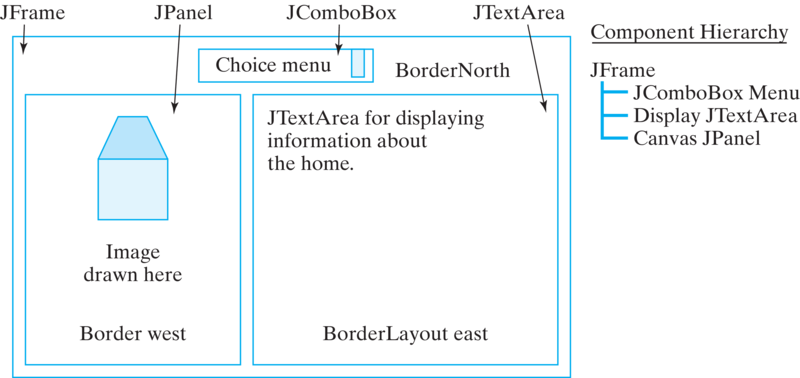
The interface for this application is very important. It should provide some means to display a text file and an image. The text file can be displayed in a
JTextArea, and the image can be drawn on a JPanel.
Next, let’s consider the types of controls a user might need. The customer should be allowed to select a home to view from a menu of options. Because the program will have the list of available homes, it can provide the options in a
JComboBox pull-down menu.
To create an appropriate layout, we want to make sure that the controls, the image, and
JTextArea all have their own region of the application’s window. This suggests a BorderLayout, which is the default layout for a JFrame. We can put the JComboBox menu at the “North” border, and the image and text on the “West” and “East” borders, respectively. Figure 15.6.1 illustrates these various design decisions.
Subsection 15.6.5 Problem Decomposition: RealEstateViewer
The task of downloading and displaying information from the Internet is best handled by two separate classes: One to perform the downloading and user interface tasks and the other to take care of displaying the image.
The task of downloading the image and text files from the Web can be handled by the program’s main class, the
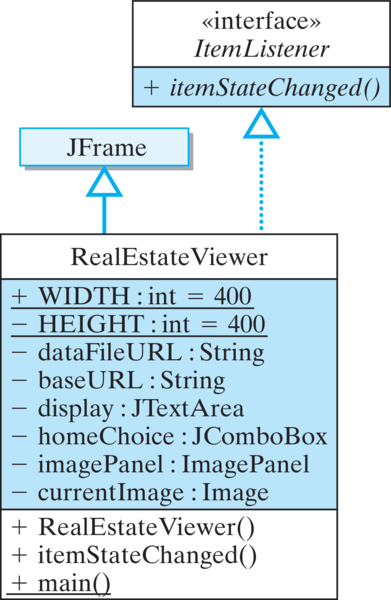
RealEstateViewer, which will also handle the user interface (Figure 15.6.2). As the application’s top-level window, RealEstateViewer will is subclass of JFrame. Because its controls will include a JComboBox, it must implement the itemStateChanged() method of the ItemListener interface.
What components and other instance variables will we need for this class? According to our interface design, it will need a
JComboBox, a JTextArea, and the ImagePanel. Because it will be downloading images, it will need an Image variable.
The initial version of
RealEstateViewer is shown in Listing 15.6.3. Note that the main() method merely creates an instance of the application and shows it. Note also that the currentImage variable is declared public. This will let the ImagePanel have direct access to currentImage whenever it needs to display a new image.
RealEstateViewer, Version 1.import java.awt.*;
import java.awt.event.*;
import java.net.*;
import java.io.*;
import javax.swing.*;
public class RealEstateViewer extends JFrame
implements ItemListener {
public static final int WIDTH=400,HEIGHT=200;
private final String dataFileURL =
"https://raw.githubusercontent.com/ram8647/javajavajava/master/chptr15/real-estate-app-resources/homes.txt";
private final String URLbase =
"https://raw.githubusercontent.com/ram8647/javajavajava/master/chptr15/real-estate-app-resources/";
private JTextArea display = new JTextArea(20,20);
private JComboBox homeChoice = new JComboBox();
private ImagePanel imagePanel = new ImagePanel(this);
public Image currentImage = null;
public RealEstateViewer () { } // Stub Constructor
// ItemListener interface
public void itemStateChanged(ItemEvent evt) { } // Stub
public static void main(String args[]) {
RealEstateViewer viewer = new RealEstateViewer();
viewer.setSize(viewer.WIDTH,viewer.HEIGHT);
viewer.setVisible(true);
viewer.setDefaultCloseOperation(JFrame.EXIT_ON_CLOSE);
}// main()
}// RealEstateViewer
Subsection 15.6.6 The ImagePanel Class
We’ll use a second class, the
ImagePanel, to handle displaying the image (Figure 15.6.4 and Listing 15.6.5).
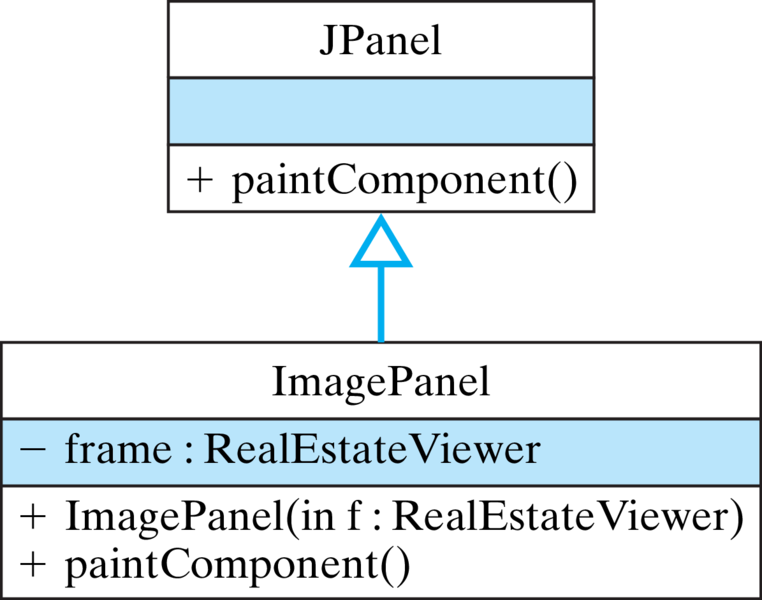
The reason we use a separate class for this task is that we want the image to appear in its own panel (which appears on the West border of the main window). In addition to its constructor, the only method needed in this class is the
paintComponent() method. This method will be called automatically whenever the main window is repainted. Its task is simply to get the current image from its parent frame and display it. Note that a reference to the parent frame is passed to the object in its constructor.
ImagePanel class.import javax.swing.*;
import java.awt.*;
public class ImagePanel extends JPanel {
private RealEstateViewer frame;
public ImagePanel(RealEstateViewer parent) {
frame = parent;
}
public void paintComponent(Graphics g) {
if (frame.currentImage != null)
g.drawImage(frame.currentImage, 0, 0, this);
}
}// ImagePanel
Subsection 15.6.7 Method Decomposition
The stub methods listed in the initial version of
RealEstateViewer(Listing 15.6.3) outline the main tasks required by the application. Some of these methods are very simple and even trivial to implement. Others should be broken up into subtasks.
The constructor method should be responsible for creating the user interface, most of which will involve the routine tasks of registering a listener for the
homeChoice menu and setting up an appropriate layout that implements the design we developed for the user interface:
public RealEstateViewer () {
    super("Home Viewer Application");// Set window title
    homeChoice.addItemListener( this);
    this.getContentPane().add("North",homeChoice);
    this.getContentPane().add("East",display);
    this.getContentPane().add("Center",imagePanel);
    display.setLineWrap(true);
    initHomeChoices();      // Set up choice box
    showCurrentSelection(); // Display current home
  }
Note the last two statements of the method. The first sets up the
JComboBox by reading its contents from a file stored in the company’s database. Because that task will require several statements, we define it as a separate method, initHomeChoices(), and defer its development for now. Similarly, the task of displaying the current menu choice has been organized into the showCurrentSelection() method, whose development we also defer for now.
The
itemStateChanged() method is called automatically when the user selects a home from the JComboBox menu. Its task is to download and display information about the current menu selection. To do this, it can simply call the showCurrentSelection() method:
public void itemStateChanged(ItemEvent evt) {
    showCurrentSelection();
  }
Subsection 15.6.8 Downloading the Menu Items
Recall that according to our specification, the real estate firm stores its current listing of homes in a text file, one home per line. The
initHomeChoices() method downloads the text and uses its contents to set up the items in the homeChoiceJComboBox menu:
private void initHomeChoices() {
  try {
    URL url = new URL(dataFileURL);
    BufferedReader data = new BufferedReader(
        new InputStreamReader(url.openStream()));
    String line = data.readLine();
    while (line != null) {
      homeChoice.addItem(line);
      line = data.readLine();
    }
    data.close();
  } catch (MalformedURLException e) {
    System.out.println( "ERROR: " + e.getMessage());
  } catch (IOException e) {
    System.out.println( "ERROR: " + e.getMessage());
  }
}// initHomeChoices()
It uses the algorithm we developed earlier for downloading a text file. Each line of the text file represents a menu item, so, as each line is read by
readLine(data), it is added to the JComboBox menu.
Subsection 15.6.9 Downloading and Displaying Home Information
The
showCurrentSelection() method is responsible for downloading and displaying images and text files whenever the user selects a home to view. Recall that our specification called for using the name of the menu item as a basis for constructing the name of its corresponding text file and image file. Therefore, the basic algorithm we need is-
Get the user’s home choice.
-
Create a URL for the associated text file.
-
Download and display the associated text file.
-
Create a URL for the associated GIF file.
-
Download and display the image.
Because downloading a text document requires stream processing, we should handle that in a separate method. The task of downloading an image file is also a good candidate for a separate method. Both of these methods will use a URL, so we can leave that task up to
showCurrentSelection() itself. The showCurrentSelection() method will create the URLs and then invoke the appropriate methods to download and display the resources:
private void showCurrentSelection() {
  URL url = null;
                              // Get user's choice
  String choice = homeChoice.getSelectedItem().toString();
  try {                   // Create url and download file
    url = new URL(baseURL + choice + ".txt");
    readTextIntoDisplay(url);
                         // Create url and download image
    url = new URL(baseURL + choice + ".gif");
    currentImage = ImageIO.read(url);
    Toolkit.getDefaultToolkit().beep(); // Beep user
    repaint();
  } catch (MalformedURLException e) {
    System.out.println( "ERROR: " + e.getMessage()) ;
  } catch (IOException e) {
    System.out.println("ERROR: " + e.getMessage()) ;
  } // Try/catch block
} // showCurrentSelection()
Note that we have also elected to handle both the
MalformedURLException and IOException in this method. The advantage of this design is that it separates exception handling from the normal algorithm and organizes it into one method. Finally, note how string concatenation is used to build the URL specifications, each of which consists of three parts: the baseURL, the user’s choice, and the file extension.
The task of reading the text file and displaying its contents has been encapsulated into the
readTextIntoDisplay() method. This private utility method performs a standard file-reading algorithm using the readLine() method that we developed earlier. Figure 15.6.6 provides a view of the program’s appearance as it is displaying information to a user. Listing 15.6.7 provides the complete implementation of this program.
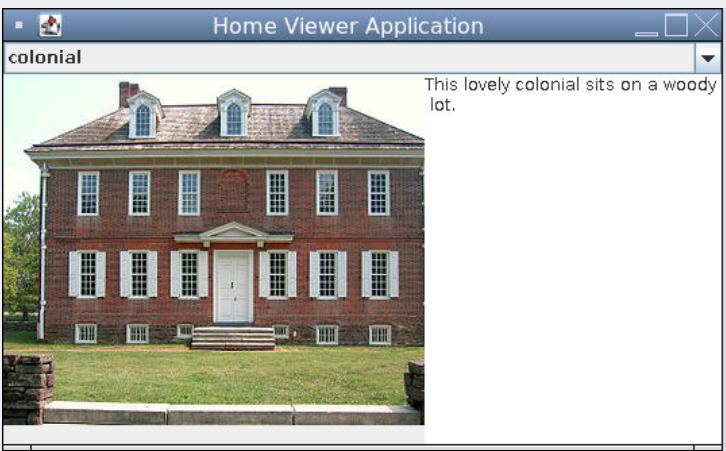
RealEstate- Viewer App.RealEstateViewer classimport java.awt.*;
import java.awt.event.*;
import java.net.*;
import java.io.*;
import javax.imageio.*;
import javax.swing.*;
public class RealEstateViewer extends JFrame
implements ItemListener {
public static final int WIDTH=400,HEIGHT=200;
private final String dataFileURL =
"https://raw.githubusercontent.com/ram8647/javajavajava/master/chptr15/real-estate-app-resources/homes.txt";
private final String URLbase =
"https://raw.githubusercontent.com/ram8647/javajavajava/master/chptr15/real-estate-app-resources/";
private JTextArea display = new JTextArea(20,20);
private JComboBox homeChoice = new JComboBox();
private ImagePanel imagePanel = new ImagePanel(this); // use the ImagePanel class
public Image currentImage = null;
public RealEstateViewer () { // Constructor
super("Home Viewer Application"); // Set window title
homeChoice.addItemListener( this);
this.getContentPane().add("North",homeChoice);
this.getContentPane().add("East",display);
this.getContentPane().add("Center",imagePanel);
display.setLineWrap(true);
initHomeChoices(); // Set up the choice box
showCurrentSelection(); // Display the current home
} // RealEstateViewer()
private void initHomeChoices() {
try {
URL url = new URL(dataFileURL);
BufferedReader data = new BufferedReader(
new InputStreamReader(url.openStream()));
String line = data.readLine();
while (line != null) {
homeChoice.addItem(line);
line = data.readLine();
} data.close();
} catch (MalformedURLException e) {
System.out.println("ERROR: " + e.getMessage()) ;
} catch (IOException e) {
System.out.println("ERROR: " + e.getMessage()) ;
}
}// initHomeChoices()
private void readTextIntoDisplay(URL url) throws IOException {
BufferedReader data
= new BufferedReader(
new InputStreamReader(url.openStream()));
display.setText(""); // Reset the text area
String line = data.readLine();
while (line != null) { // Read each line
display.append(line + "\n"); // And add it to the display
line = data.readLine();
}
data.close();
}// readTextIntoDisplay()
private void showCurrentSelection() {
URL url = null; // Get user's choice
String choice = homeChoice.getSelectedItem().toString();
try {
url = new URL(baseURL + choice + ".txt") ; // Create URL
readTextIntoDisplay(url); // Download and display text file
url = new URL(baseURL + choice + ".gif"); // Create URL
// Download image
currentImage = ImageIO.read(url);
Toolkit.getDefaultToolkit().beep(); // Alert the user
repaint();
} catch (MalformedURLException e) {
System.out.println( "ERROR: " + e.getMessage()) ;
} catch (IOException e) {
System.out.println("ERROR: " + e.getMessage()) ;
}
}// showCurrentSelection()
public void itemStateChanged(ItemEvent evt) {
showCurrentSelection();
} // itemStateChanged()
public static void main(String args[]) {
RealEstateViewer viewer = new RealEstateViewer();
viewer.setSize(viewer.WIDTH,viewer.HEIGHT);
viewer.setVisible(true);
viewer.setDefaultCloseOperation(JFrame.EXIT_ON_CLOSE);
}// main()
}// RealEstateViewer
Subsection 15.6.10 Reusing Code
As in other examples we have developed, our discovery and use of the
javax.imageio.ImageIO.read() method and other classes from the Java class library illustrate an important principle of object-oriented programming.
Principle 15.6.8. EFFECTIVE DESIGN: Code Reuse.
Before writing code to perform a particular task, search the available libraries to see if there is already code that performs that task.
An important step in designing object-oriented programs is making appropriate use of existing classes and methods. In some cases, you want to directly instantiate a class and use its methods to perform the desired tasks. In other cases, it is necessary to create a subclass (inheritance) or implement an interface (inheritance) in order to gain access to the methods you need.
Of course, knowing what classes exist in the libraries is something that comes with experience. There’s no way that a novice Java programmer would know about, say, the
ImageIO.read() method. However, one skill or habit that you should try to develop is always to ask yourself the question: “Is there a method that will do what I’m trying to do here?” That question should be the first question on your search through the libraries and reference books.
Subsection 15.6.11 Self-Study Exercise
Exercise 15.6.9. Create Your Own App.
Fork the repl below to create your own app for the Real Estate domain or another domain of your choice where you want to display images and text. Add your own images and text files by uploading them into your repl. You can change the code to use local files in the repl instead of a URL with the following code in the loop to read in the images in You will also need to change the URL argument into a String argument in
initHomeChoices(): // instead of the arg. new InputStreamReader(url.openStream()
BufferedReader data = new BufferedReader(new FileReader(filename));
// catch FileNotFoundFoundException
readTextIntoDisplay(String filename) and use the FileReader above, and use the File class to read in the image file in readTextIntoDisplay(): // read in local file instead of url
File imageFile = new File(base + choice + ".jpg");
currentImage = ImageIO.read(imageFile);
You have attempted of activities on this page.